概述
Windows 环境搭建 WordPress。PHP 调试环境搭建
相关参考
- Windows从零安装WordPress - HanzoHuang - 博客园
- 本文安装的目标环境
- WordPress 4.9.4
- MySQL 5.5
- PHP 5.5.6
[toc]
下载安装
建议先下载 WordPress,再根据 WordPress 文件中的 [[【Linux】readme|readme]].html 下载对应版本的 PHP 和 MySQL。另外的需要下载 Nginx 实现 Web 服务,这个可以单独下载。
-
WordPress
下载完成后打开
readme.html文件,查看最低系统需求或者根据系统推荐下载 PHP 和 MYSQL -
下载 MYSQL
下载链接:MySQL :: Download MySQL Community Server (Archived Versions)
下载完成后直接安装就行,设置用户名和密码,进入到
mysql环境后创建wordpress数据库create database wordpress; -
下载 PHP
配置环境
配置环境主要是修改配置文件
nginx.conf
文件路径:\wordpress-4.9.4-zh_CN\nginx-1.28.0\conf\nginx.conf
修改点 Line10\Line11\Line32
    server {
        listen       80;
        server_name  localhost;

        #charset koi8-r;

        #access_log  logs/host.access.log  main;

        location / {
            root   E:/wordpress-4.9.4-zh_CN/wordpress; # 这里修改为 wordpress 的目录
            index  index.html index.htm index.php; # 这里添加 index.php
        }

        #error_page  404              /404.html;

        # redirect server error pages to the static page /50x.html
        #
        error_page   500 502 503 504  /50x.html;
        location = /50x.html {
            root   html;
        }

        # proxy the PHP scripts to Apache listening on 127.0.0.1:80
        #
        #location ~ \.php$ {
        #    proxy_pass   http://127.0.0.1;
        #}

        # pass the PHP scripts to FastCGI server listening on 127.0.0.1:9000
        #
        location ~ \.php$ {
            root           E:/wordpress-4.9.4-zh_CN/wordpress; # 这里同样修改为 WordPress 所在目录
            fastcgi_pass   127.0.0.1:9000;
            fastcgi_index  index.php;
            fastcgi_param  SCRIPT_FILENAME  $document_root$fastcgi_script_name; # 修改  param
            include        fastcgi_params;
        }

        # deny access to .htaccess files, if Apache's document root
        # concurs with nginx's one
        #
        #location ~ /\.ht {
        #    deny  all;
        #}
    }
php.ini
文件路径: 下载的根目录
修改点如下所示:
-
extension_dir设置到 php 目录下的 ext; Directory in which the loadable extensions (modules) reside. ; https://php.net/extension-dir ;extension_dir = "./" ; On windows: extension_dir = "E:\wordpress-4.9.4-zh_CN\php-8.5.1-Win32-vs17-x64\ext" -
开启
cgi.fix_pathino; cgi.fix_pathinfo provides *real* PATH_INFO/PATH_TRANSLATED support for CGI. PHP's ; previous behaviour was to set PATH_TRANSLATED to SCRIPT_FILENAME, and to not grok ; what PATH_INFO is. For more information on PATH_INFO, see the cgi specs. Setting ; this to 1 will cause PHP CGI to fix its paths to conform to the spec. A setting ; of zero causes PHP to behave as before. Default is 1. You should fix your scripts ; to use SCRIPT_FILENAME rather than PATH_TRANSLATED. ; https://php.net/cgi.fix-pathinfo cgi.fix_pathinfo=1 -
启动
php_mysqli.dll插件extension=php_mysqli.dll #新版本中可能省略了后缀.dll
Web-Config.php
在 WordPress 的下载目录有一份 Web-Config-Sample.php 的文件,拷贝一份为 Web-Config.php,然后修改对应的数据库字段即可。
启动
启动主要分两个步骤:
- 启动
nginx - 启动
php-cgi
手动启动步骤如下所示:
# 启动 nginx.exe
nginx.exe

# 启动 PHP
%PHP_PATH%\php-cgi.exe -b 127.0.0.1:9000 -c %PHP_PATH%\php.ini
大致的脚本如下所示:
如果没有 RunHiddenConsole,使用 Start 命令也行
@echo off

set PHP_FCGI_MAX_REQUESTS = 1000

echo Starting PHP FastCGI...

rem 分别为php-cgi.exe和php.ini的路径 ,-b,-c等参数必须保留且注意前后空格

RunHiddenConsole %PHP_PATH%\php-cgi.exe -b 127.0.0.1:9000 -c %PHP_PATH%\php.ini

rem start E:\wordpress-4.9.4-zh_CN\nginx-1.28.0\nginx.exe

echo Starting nginx...

rem 填写nginx.exe实际位置

RunHiddenConsole %NGINX_PATH%\nginx.exe

pause
对应的关闭程序脚本
@echo off
echo Stopping nginx...
taskkill /F /IM nginx.exe > nul
echo Stopping PHP FastCGI...
taskkill /F /IM php-cgi.exe > nul
pause
WordPress 调试环境搭建
环境说明
原理很简单,就是让 php 在启动的时候可以加载 xdebug 的动态库,然后就可以通过 VSCode 的 PHP Debug 插件进行调试。
- PHP版本和上文部署的一致
- Visual Studio
- PHP XDebug
调试环境配置:
推荐文章中有使用 PHP Study 的,鉴于我这里是为了调试 WordPress 源码,因此还是自己琢磨下,不使用 PHPStudy。
安装插件 PHP Debug

XDebug
- 下载页面:Xdebug: Downloads
然后就是下载对应的 XDebug 版本了,运行 phpinfo() 获取版本信息,然后粘贴到 Xdebug: Support — Tailored Installation Instructions 这个页面,就可以自动获取要安装的版本了。
由于 PHP 5.5.6 版本不支持,要考虑使用别的方案了
下载完成对应的 XDebug 文件后,在 php.ini 中添加如下所示的配置:
[PHP]
zend_extension=E:\\wordpress-4.9.4-zh_CN\\php_xdebug-2.5.5-5.5-vc11-x86_64.dll # xdebug dong'tai'k
xdebug.mode = debug
xdebug.start_with_request = yes
xdebug.remote_enable = 1
xdebug.remote_autostart = 1
xdebug.remote_port = 9003 #配置端口 9003 与 launch.json 配置保持一致
xdebug.log = "E:\\wordpress-4.9.4-zh_CN\\xdebug.log"
然后就是修改 VSCode 的配置文件,设置 php 的调试路径,在 VSCode 的 settings.json 中添加如下配置:
"php.validate.executablePath": "E:\\wordpress-4.9.4-zh_CN\\php-5.5.6-Win32-VC11-x64\\php.exe",
"php.debug.executablePath": "E:\\wordpress-4.9.4-zh_CN\\php-5.5.6-Win32-VC11-x64\\php.exe",
最后就是在将 WordPress 的源代码目录打开为 VSCode 的工作区并添加 launch.json 调试配置文件:
主要的调试配置如下所示:
{
    "name": "Listen for Xdebug",
    "type": "php",
    "request": "launch",
    "port": 9003
}
一切配置完成后就可以启动 Wordpress 调试了。
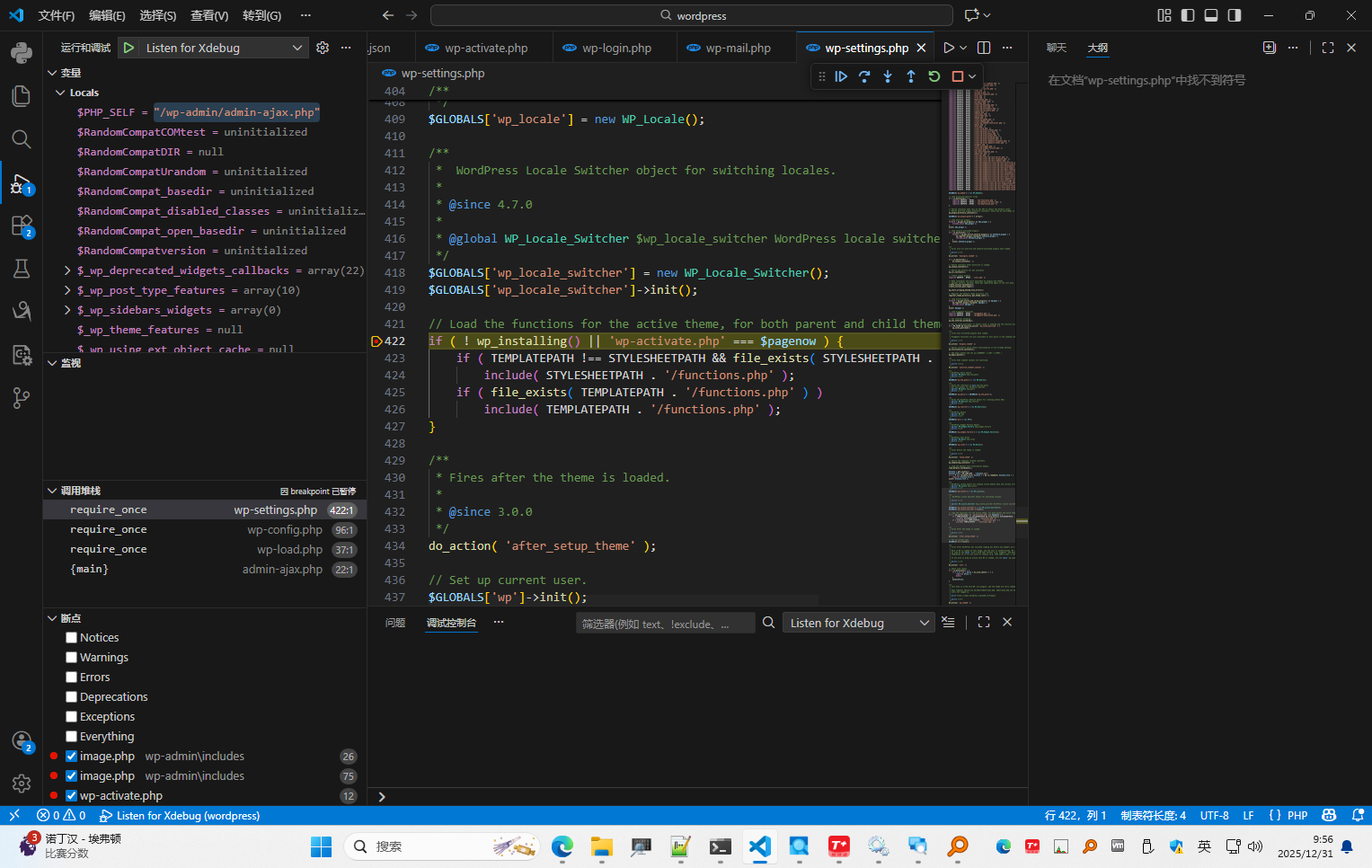
WordPress 源码断点命中截图:
PHP 源码编译
环境说明
这里还是以 PHP 5.5.6 为例,但是这个版本就会比较麻烦,需要老版本的SDK和WDK才行。用新版本的只需要安装官方文档的教程执行即可。
完成的编译步骤可以参考官方文章:
- microsoft/php-sdk-binary-tools: Tool kit for building PHP under Windows
- PHP: internals:windows:stepbystepbuild
关于要编译的版本与对应的 Visual C++ 版本对比可以在这篇文章看到:PHP: internals:windows:stepbystepbuild_sdk_2
相关参考文章:
下载 PHP 源码
-
可以从 PHP 的 Github 页面下载历史版本
-
也可以在 Windows.php.net 页面下载
下载 PHP 编译工具
microsoft/php-sdk-binary-Tools: Tool kit for building PHP under Windows
上述链接也包括 PHP 的编译工具 php-sdk-binary。可以帮助配置 PHP 的编译环境
搭建环境编译
剩下的就是按照官方文档的步骤执行了:
git clone https://github.com/Microsoft/php-sdk-binary-tools.git c:\php-sdkcd c:\php-sdkgit checkout php-sdk-2.1.9or later- invoke
phpsdk-vc15-x64.bat phpsdk_buildtree phpmastergit clone https://github.com/php/php-src.git && cd php-src, or fetch a zipballphpsdk_deps --update --branch master, usephpsdk_deps --update --branch X.Yfor a non master branch- do the build, eg.
buildconf && configure --enable-cli && nmake
相关提示
configure --help可以调用 help 命令查看当前配置项编译时支持的参数有哪些,在编译一些插件时可能会用到(比如 MySQL)。
一些遇到的问题
-
PHP7 编译报错常量异常 (涉及到的版本 7.0.2)
**问题原因:**文件编码问题导致的,可以参考这篇文章修改下相关文件编码PHP :: Bug #52974 :: jewish.c: compile error under Windows with GBK charset
-
编译替换相关问题
-
ThreadSafety 问题
如果你下载运行的 Thread Safe 版本,那么在编译时也要统一为 ts 版本
-
本地编译的替换问题
首先是插件,如果你在配置文件中启用了某些插件,那么在本地编译时ye’xu’yao
-
相关拓展
C++ 开发
如果你在使用 PHP 的过程中需要使用 C\C++ 的方式来调用 PHP,那你就可能会需要了解 Zend SAPIs。
PHP Zend SAPIs: