概述:windows 双机调试可以在主页搜索 bcdedit 命令。双机调试是一个非常有用的技术,方便内核、驱动等调试场景。本文主要记录使用net调试的配置步骤。
参考微软官方文档:
- Set up KDNET network kernel debugging manually - Windows drivers | Microsoft Learn
- WinFsp Debugging Setup · WinFsp
配置目标主机
说明:需要两台机器之间可以ping通
开启调试模式
注意:不能有多余的空格
bcdedit /debug on

bcdedit /dbgsettings net hostip:w.x.y.z port:n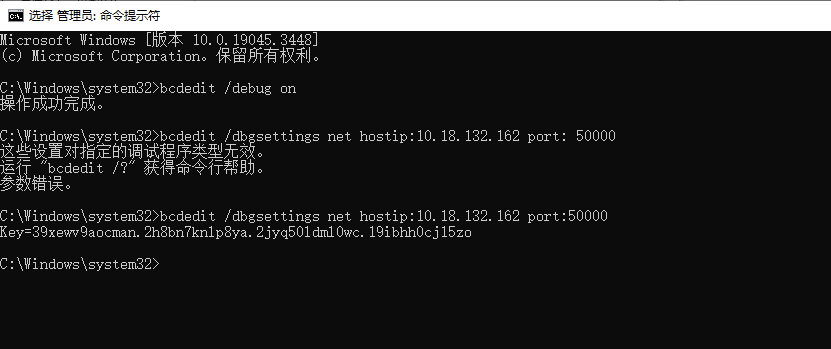
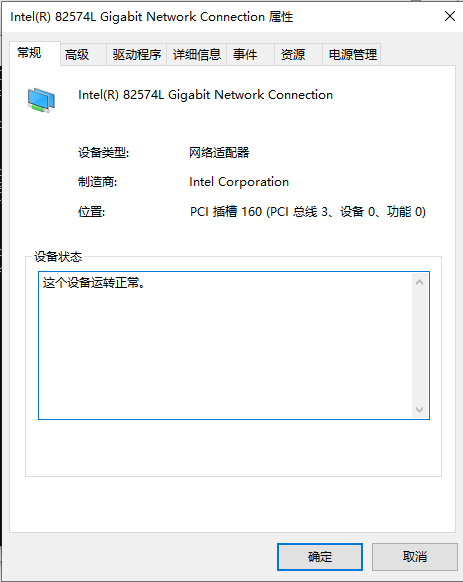
存在多个网卡时
如果目标机有多个网卡,还需要执行如下命令:
bcdedit /set {dbgsettings} busparams b.d.f 其中b为总线号,d为设备号,f为功能号,这些可以在设备管理器中查到。
禁用签名校验
bcdedit.exe -set TESTSIGNING ON
bcdedit.exe -set loadoptions DDISABLE_INTEGRITY_CHECKS
上述配置完成后,重启操作系统
配置windbg
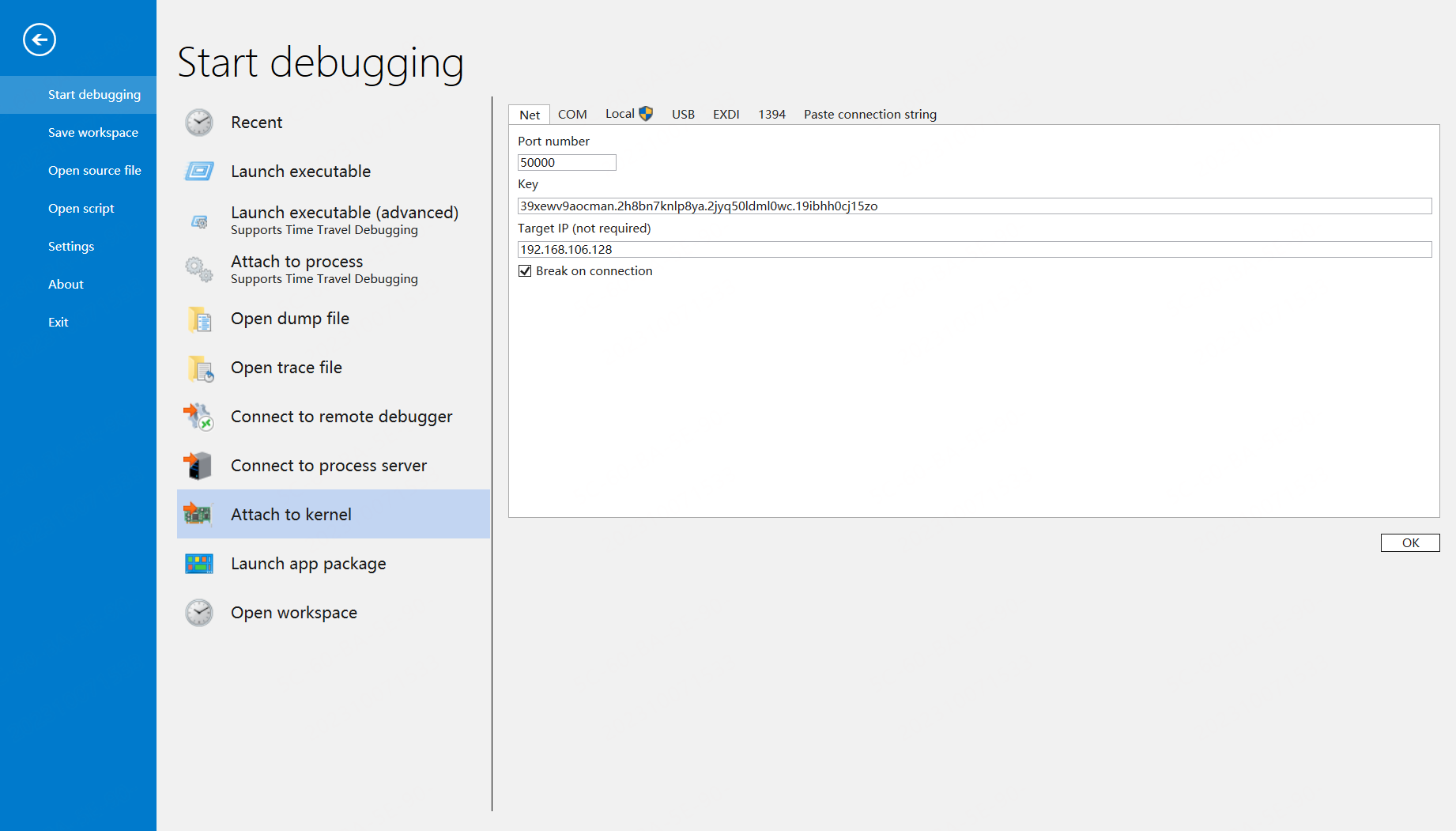
执行完上述命令后会得到一个key值,将key值填入到windbg页面中,如下所示:
配置符号文件路径
srv*D:\Symbols*https://msdl.microsoft.com/download/symbols
命令行方式连接
- kd命令
kd -k net:port=<n>,key=<MyKey>- windbg连接
windbg -k net:port=<n>,key=<MyKey>重启调试
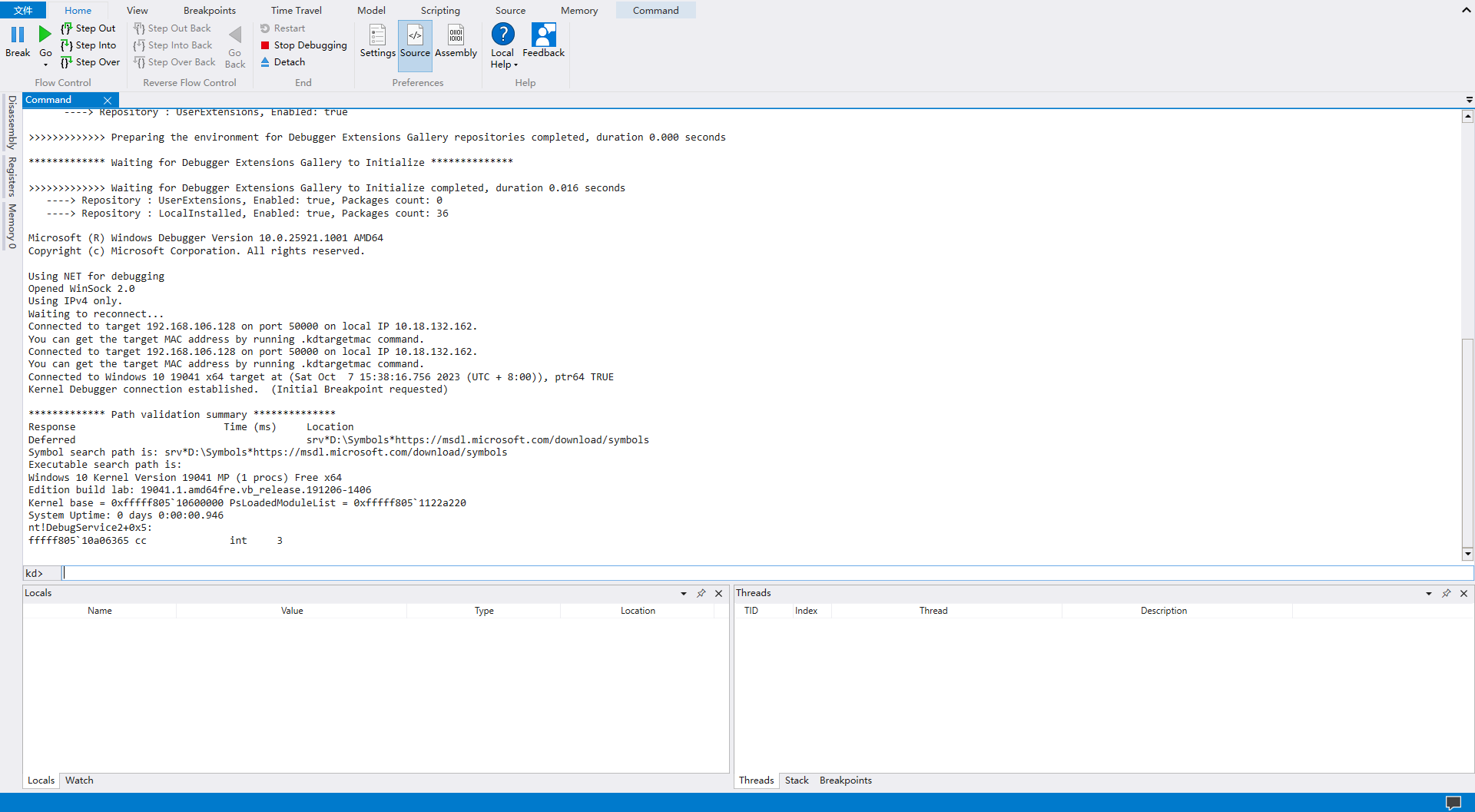
如下所示:重启后直接断点,可以从操作系统启动阶段开始调试了
或者使用cmd命令
shutdown -r -t 0双机调试模式下调试用户态进程
过程如下: 1、!process 0 0 目标进程名 获取目标进程EPROCESS基本信息 2、.process /p +EPROCESS信息 切换到目标进程空间 3、.reload /f /user 强制重新加载用户态符号 4、.process /i /p 目标进程的EPROCESS 侵入式调试 5、bp 目标API 执行下断点命令
Debugging a user mode process from kernel mode WinDbg
In order to debug a user mode process from a kernel mode WinDbg session, break into the debugger and issue the following commands:
kd> !gflag +ksl
kd> sxe ld MODULE-NAME.exe
Restart the debugger and it will break within process creation. You can now set a breakpoint at your process wmain (or main, etc.):
kd> bp MODULE_NAME!wmain
Restart the debugger and it will stop at your program’s entry point.